

If you are using a spreadsheet to keep track of your inventory, your role will eventually evolve into that of a programmer. That may look like a bold statement. Follow along with me.
First off, I love me a good spreadsheet. A spreadsheet can be a powerful tool. While they were initially designed for essentially keeping track of numbers, their usefulness has really grown over the years. With the ability to add formulas, pivot tables, reference other spreadsheets, and create drop-down menus constrained to lists found in other sheets, you can really customize a spreadsheet that functions the way you'd like to see it. In Excel you can even add snippets of code that watch certain cells and trigger different actions, and that's when a spreadsheet really starts to show off its strength as a platform for more than just tracking numbers.
It used to be that a spreadsheet was limited to one person using it at a time, but with the advent of "the cloud," that limitation has really gone by the wayside. It can become a genuine platform for developing a system of tracking "things."
In our work on Odeumate, I've seen some incredibly impressive spreadsheets.
But here's where Excel starts to get a bit tricky. A simple example: when is it better to use a COUNT() versus a COUNTA() formula? And to complicate things further, when does it make sense to use DCOUNT() versus DCOUNTA()?
Side Quest: A Quick Excel Game
Imagine you're tracking props for a show. Your sheet looks like this:
| Prop Name | Quantity | Condition |
|---|---|---|
| Sword | 3 | Good |
| Crown | 1 | Excellent |
| Letter | 5 | Good |
| Goblet | 4 | Damaged |
| Map | Good | |
| Candle | 2 | Excellent |
The easy ones first:
=COUNT(B2:B7)answers "how many props have a quantity recorded?" → 5. COUNT only counts numbers, so the blank cell next to Map is excluded.=COUNTA(A2:A7)answers "how many props are on the list total?" → 6. COUNTA counts anything that isn't blank, so it catches every row.
Now the fun ones. DCOUNT and DCOUNTA add a wrinkle: they need a separate criteria range, which itself needs headers that exactly match your data table. Let's set up criteria in E1:E2 and count how many Good-condition props have quantities filled in.
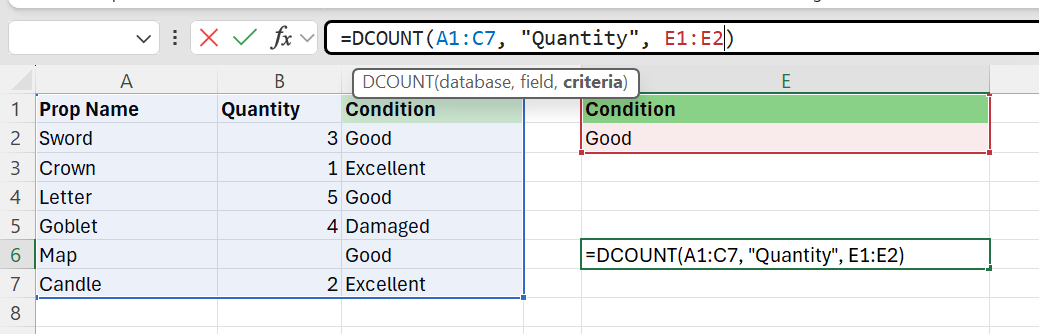
Excel color-codes each argument as you type. The data table (A1:C7) is outlined in blue, the criteria range (E1:E2) is outlined in red, and the tooltip reminds you which argument is which: DCOUNT(database, field, criteria).
Hit Enter, and:
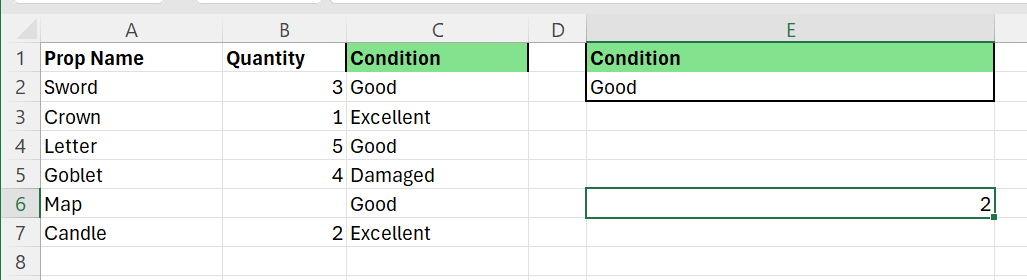
The answer is 2: Sword and Letter. Map is excluded because its quantity is blank, exactly like COUNT did earlier. (DCOUNTA would have caught it, the same way COUNTA catches non-numeric entries.)
Now here's the part that costs people hours. Look at this:
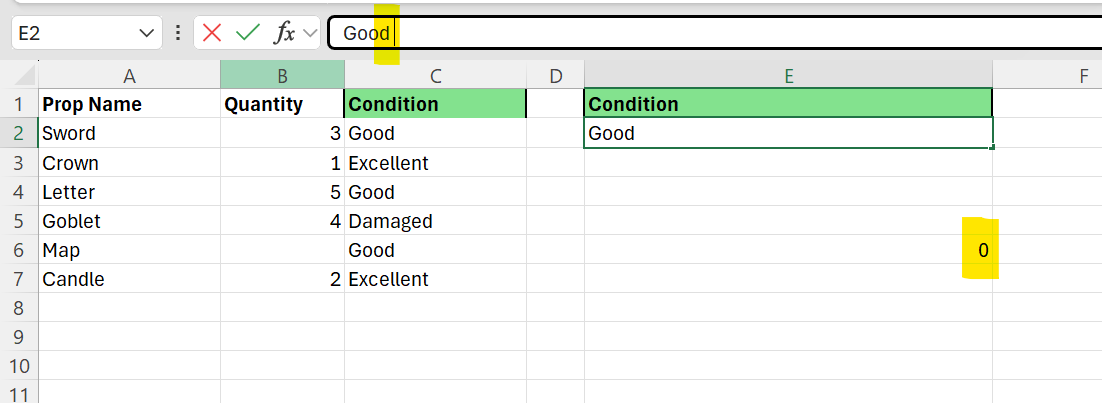
Same formula. Same data. Same criteria. Almost. The cell in E2 now reads Good with a trailing space. The result silently drops from 2 to 0. No error. No warning. Just a wrong answer that looks right.
This is the kind of thing that catches people: the criteria range header (Condition in E1) must exactly match the column header in your data table. The field argument, "Quantity" in quotes, has to match the header exactly too. And the criteria value itself has to match what's in the data, character for character, invisible spaces and all.
Some of the more powerful Excel formulas (I'm looking at you, XLOOKUP()) have argument options that seem logical at first and then seem to randomly give you the wrong results. Take XLOOKUP's match_mode argument: it defaults to exact match, but if you set it to 1 or -1 expecting "closest match," you'll get surprising answers unless your data is sorted, because those modes assume sorted data. Little gotchas like that pile up over time.
Does this mean a spreadsheet is the wrong place to track inventory? No, absolutely not. Spreadsheets are powerful tools. They may be the right tool for you. I think it's important to be upfront about it, though: if you're going to use a spreadsheet to track your inventory, whether you build it yourself or download one from someone else, at a certain point you will be spending your time programming, doing tech support for others, tracking down circular references, and figuring out which formula was the one you really wanted. And that's okay, because that may be part of what makes the role fun for you.
Why More Than a Spreadsheet?
How about I skip all the techy stuff, and there is a lot of it. Here's my pitch: we are your team of programmers. You focus on theatre. That's what you love anyway. We'll focus on programming theatre software. That's what we love.
Try Odeumate for free at odeumate.com. 500 items, free forever. No credit card, no time limit.
Oh, and if you have already built one of those impressive spreadsheets, you won't lose a thing: import it into Odeumate, the hidden programming job becomes ours, and you never have to think about a stray formula again.

Photo: Museum of Broadway, New York
Glenn Howard is a co-founder of Odeumate and serves on the board of Chilliwack Players Guild. He has spent 30 years in IT and nearly as long on stage, and he built Odeumate because nothing else existed.